INDEX
□□
Install Guide
How to Install and Use DBRMAN Store Upgrades

Follow these steps to install DBRMAN Store Upgrades, buy an upgrade, and add it to your Shopify theme.

If you still need assistance, please submit a help ticket.
PART A
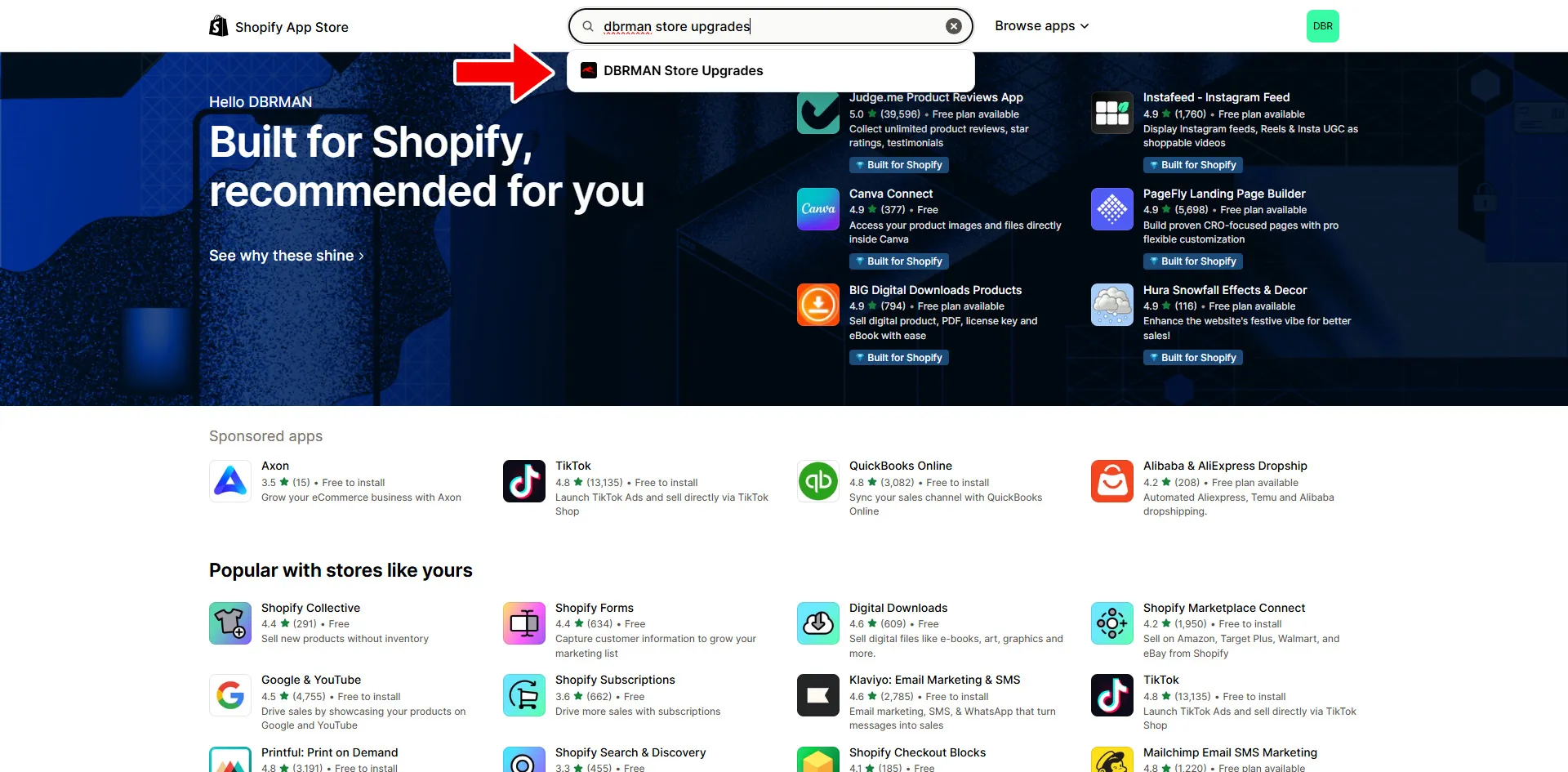
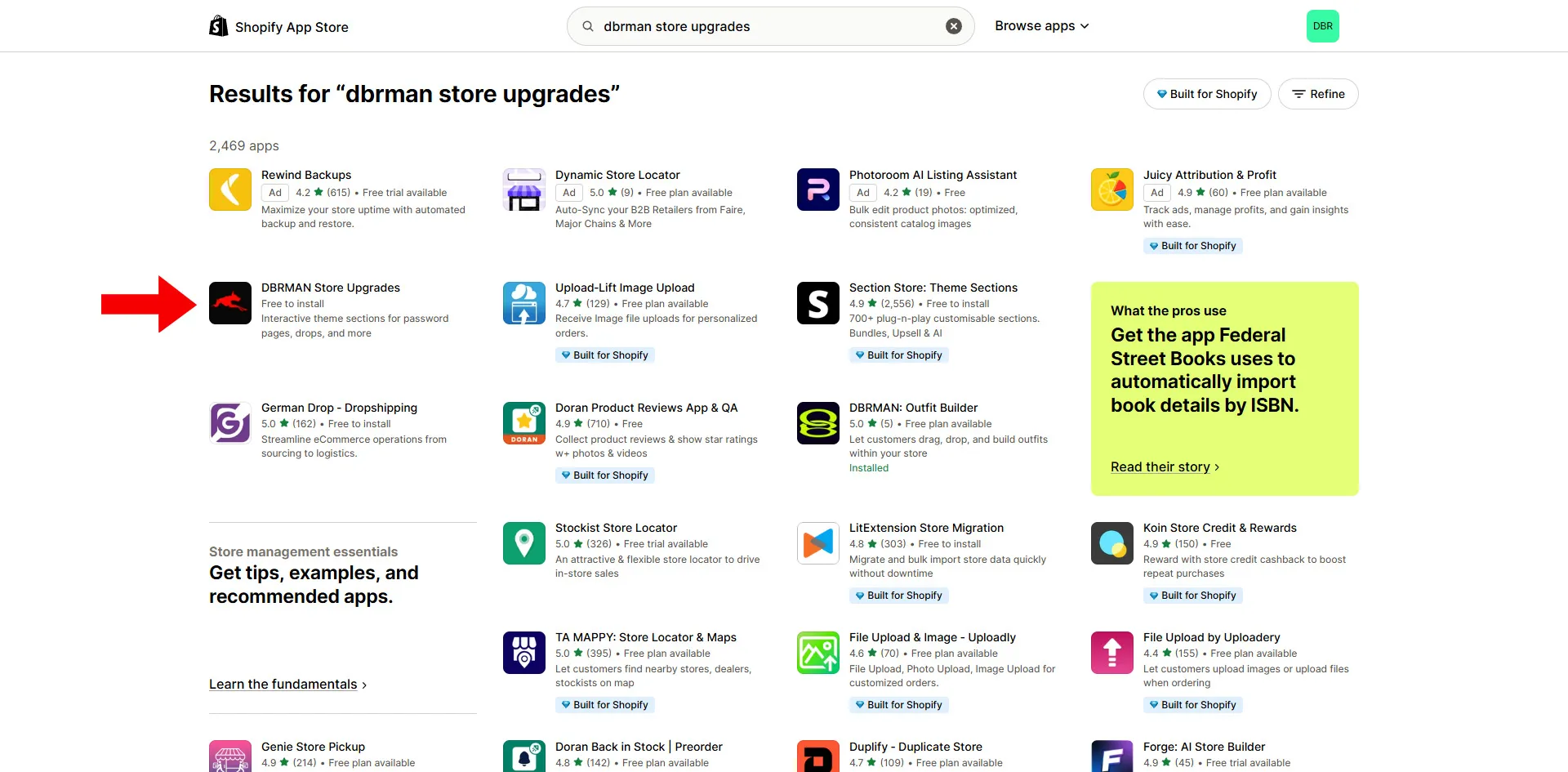
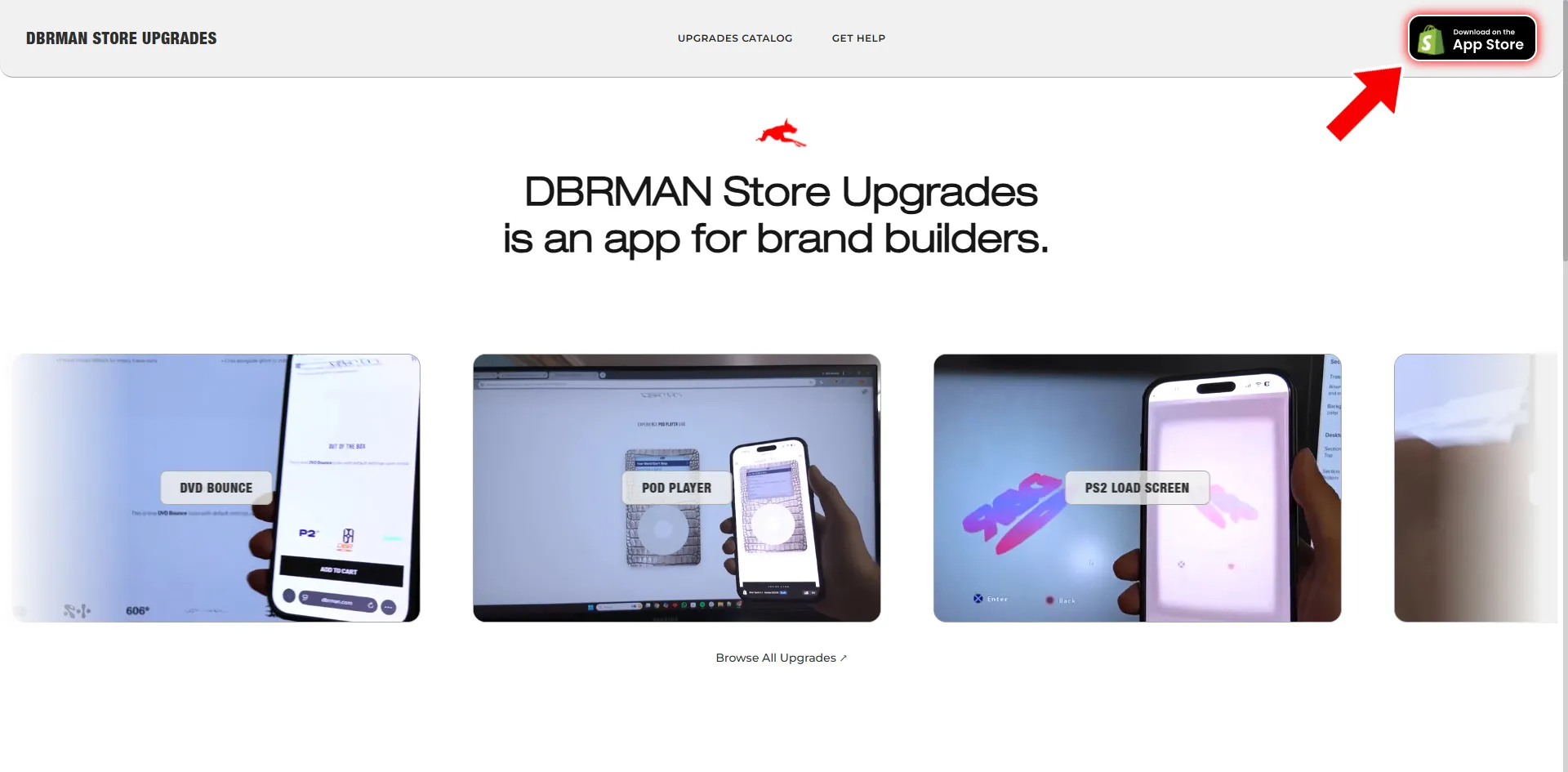
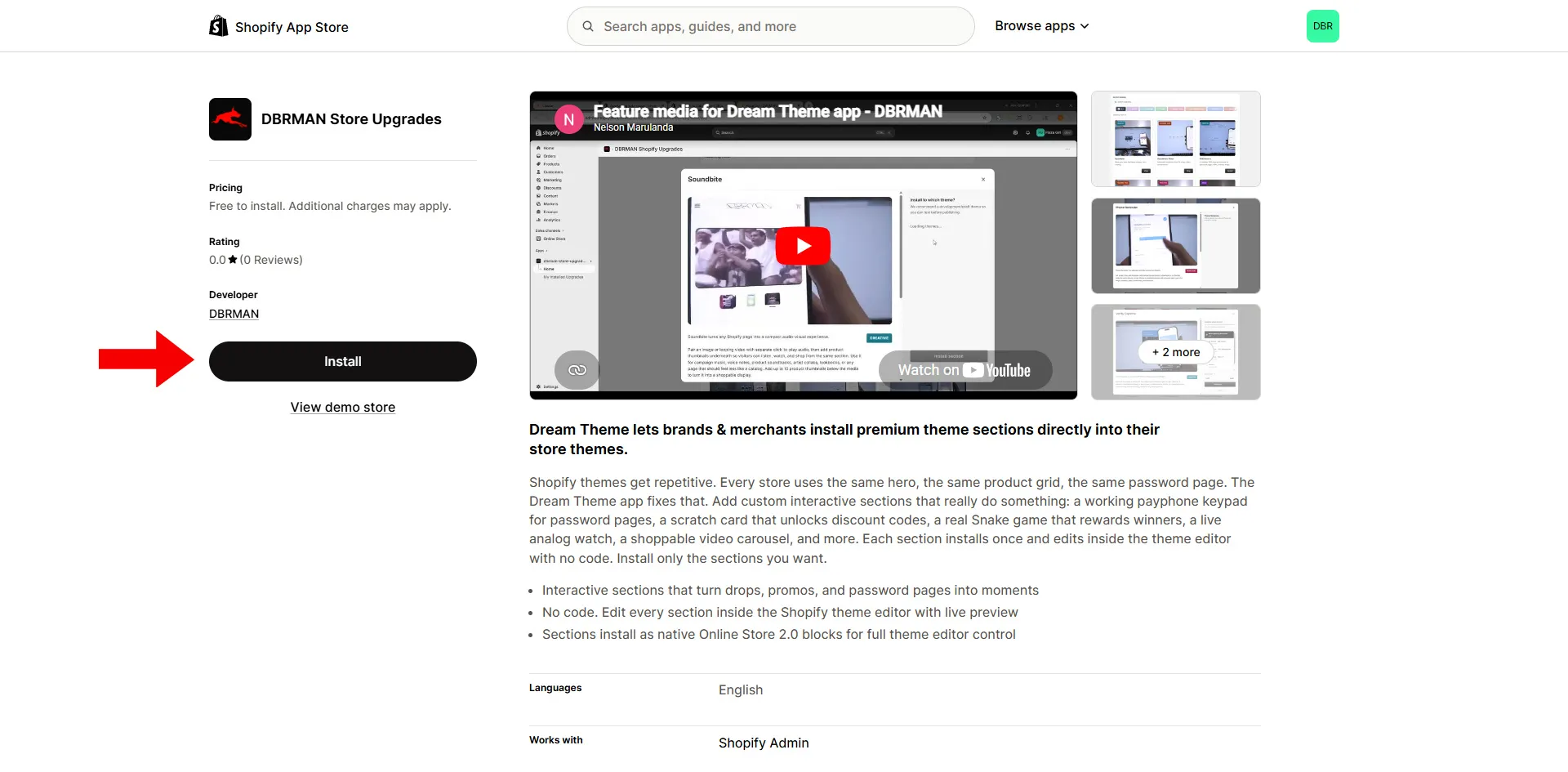
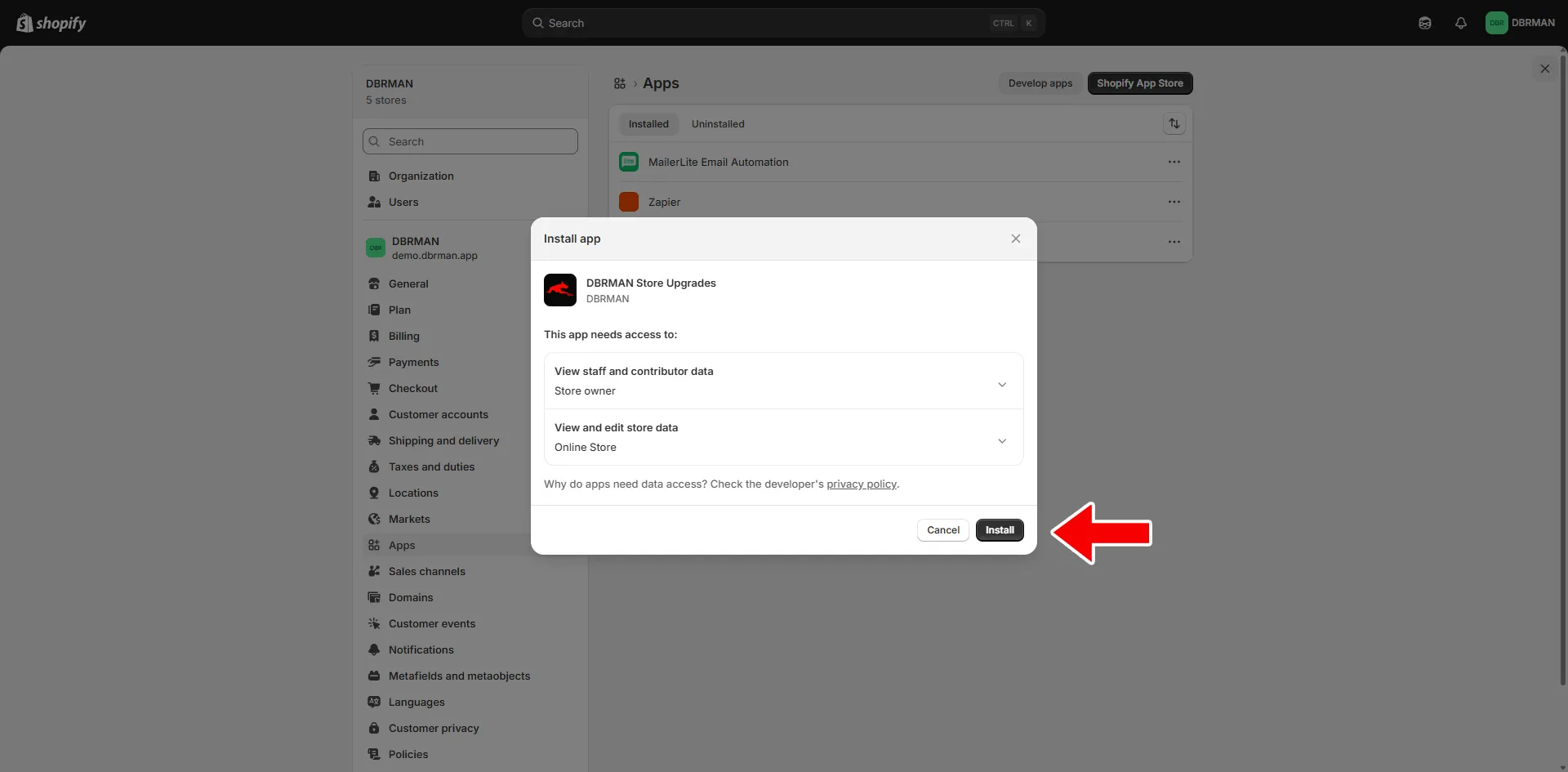
Install the App
PART B
OPEN THE APP DASHBOARD
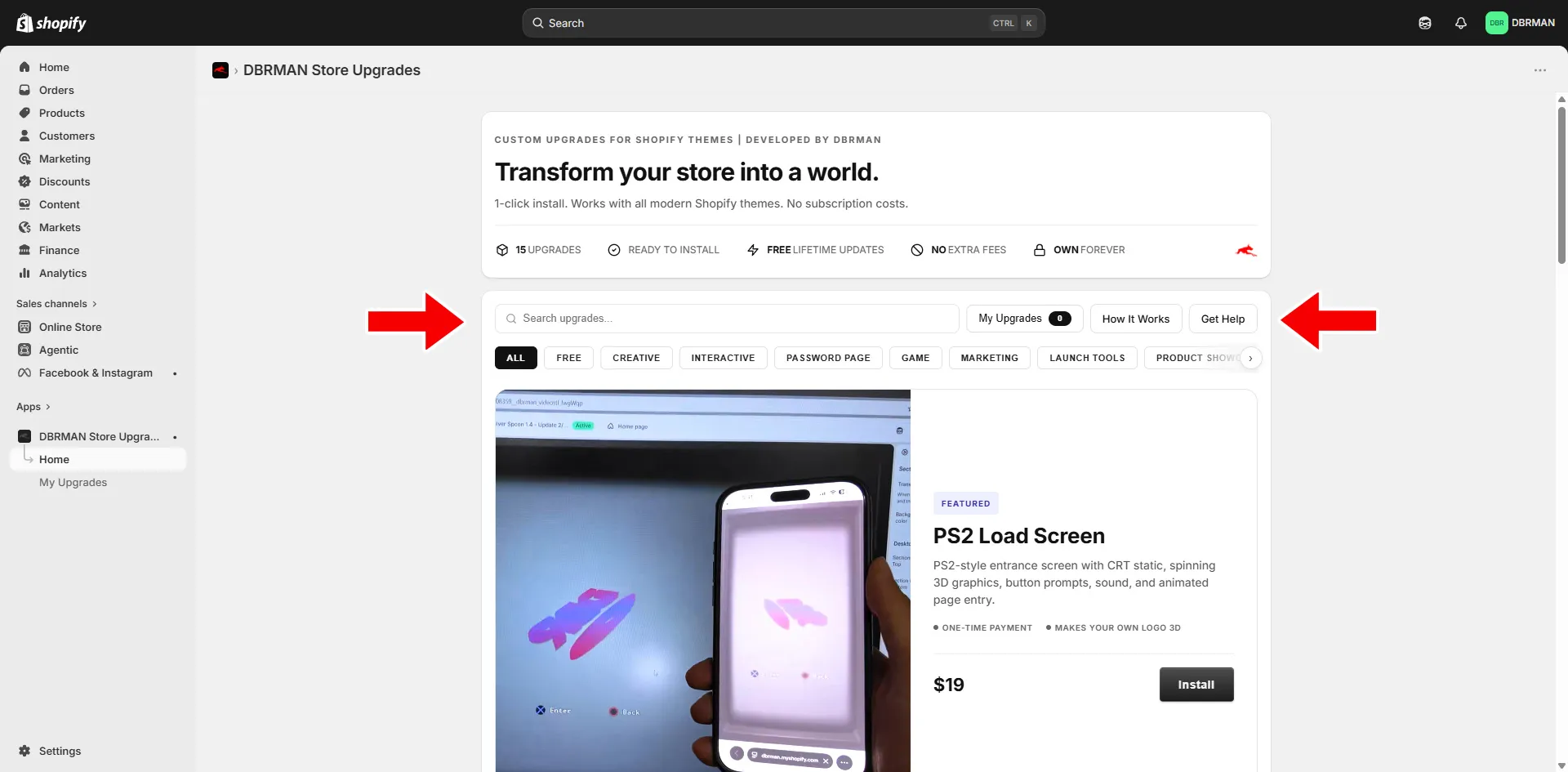
4: VIEW THE DBRMAN DASHBOARD
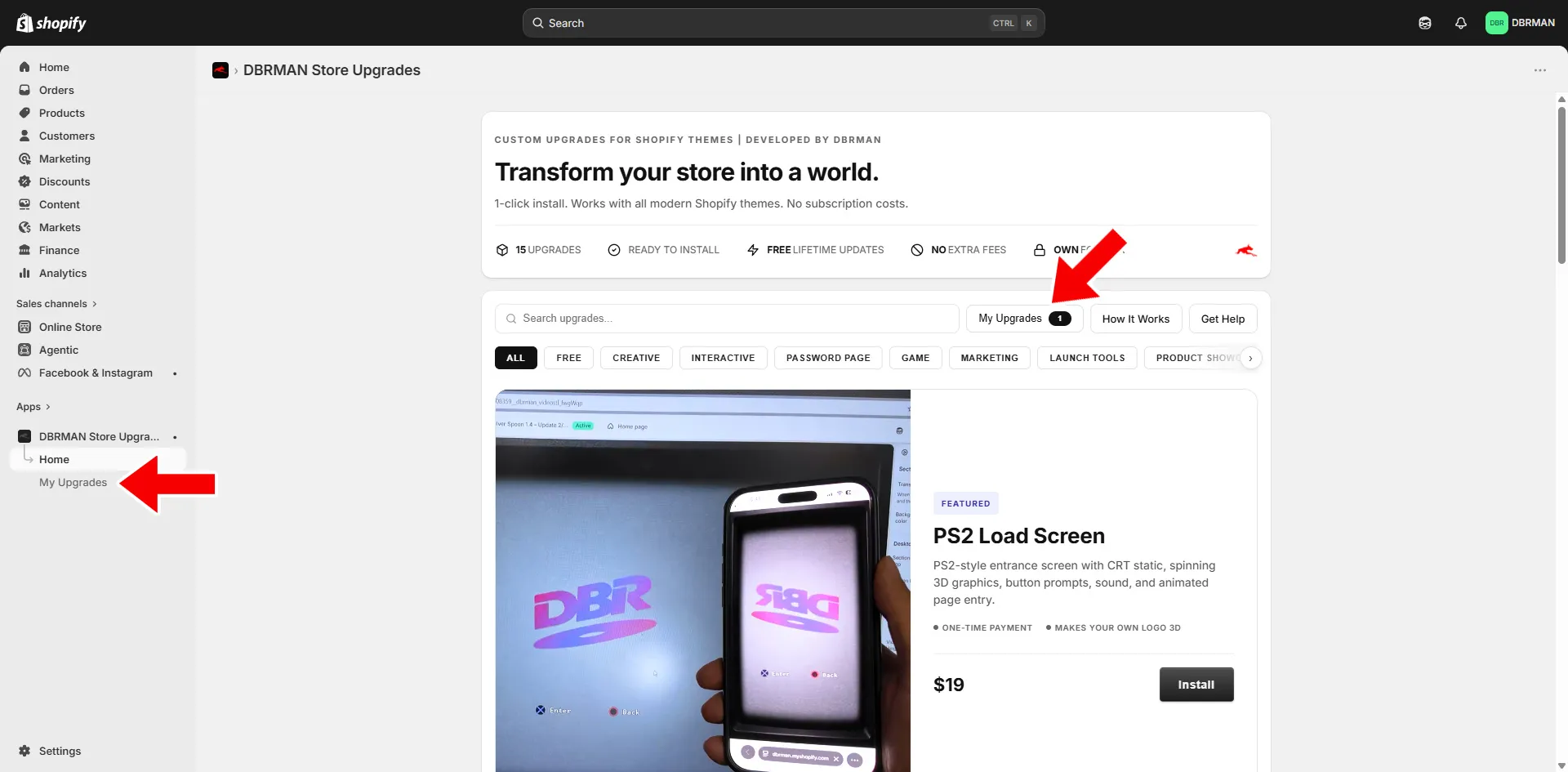
After the app is installed, you will land inside the DBRMAN Store Upgrades dashboard.

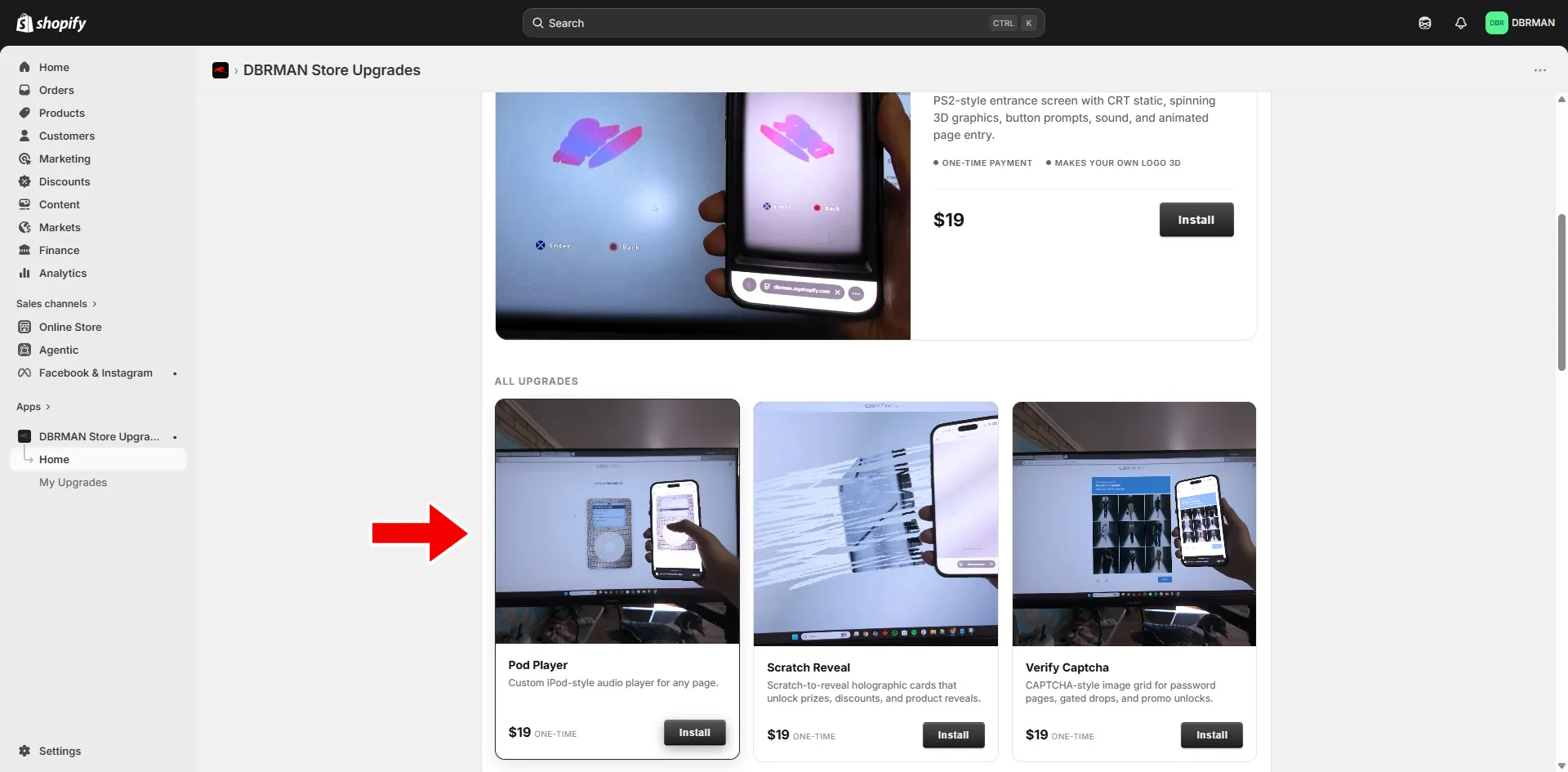
From here, you can browse the full upgrade catalog, search for upgrades, filter by category, open How It Works, open Get Help, and view your purchased or installed upgrades.
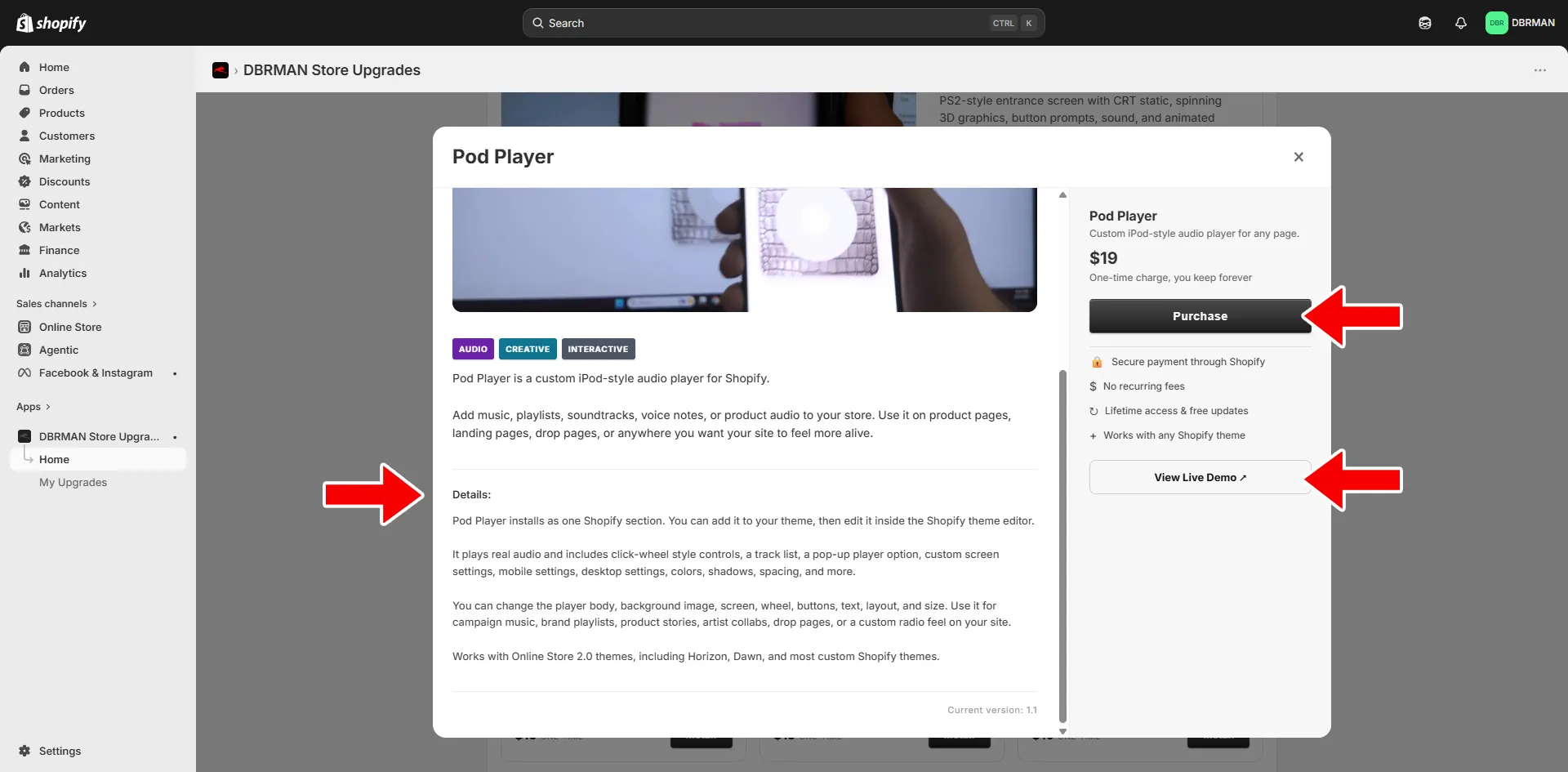
6: REVIEW THE UPGRADE POPUP
• 3-4
The upgrade popup will show more information about the upgrade.

On the left side, you can scroll through the overview, description, details, and feature information.

On the right side, you will see the price, purchase button, and live demo button.
PART C
PURCHASE AN UPGRADE
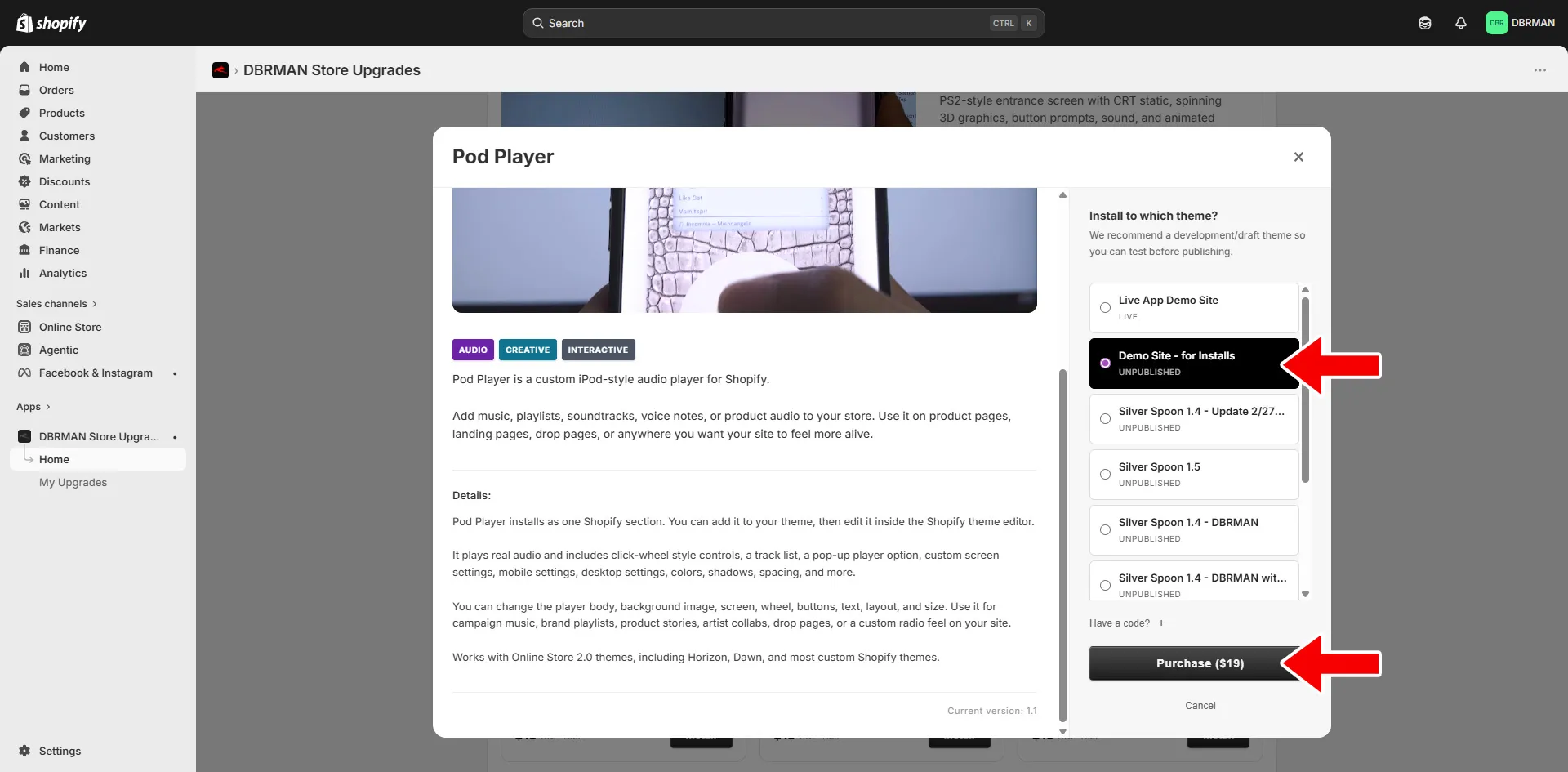
7: CHOOSE A THEME
7: CHOOSE A THEME
Click Purchase.

You will be asked to choose which theme you want to install the upgrade into.

You can choose your live theme or an unpublished draft theme.

We recommend using a draft theme first if you want to test the upgrade before publishing it.

Once you buy an upgrade, you own it. You can install it into your current themes and future themes from the same store.
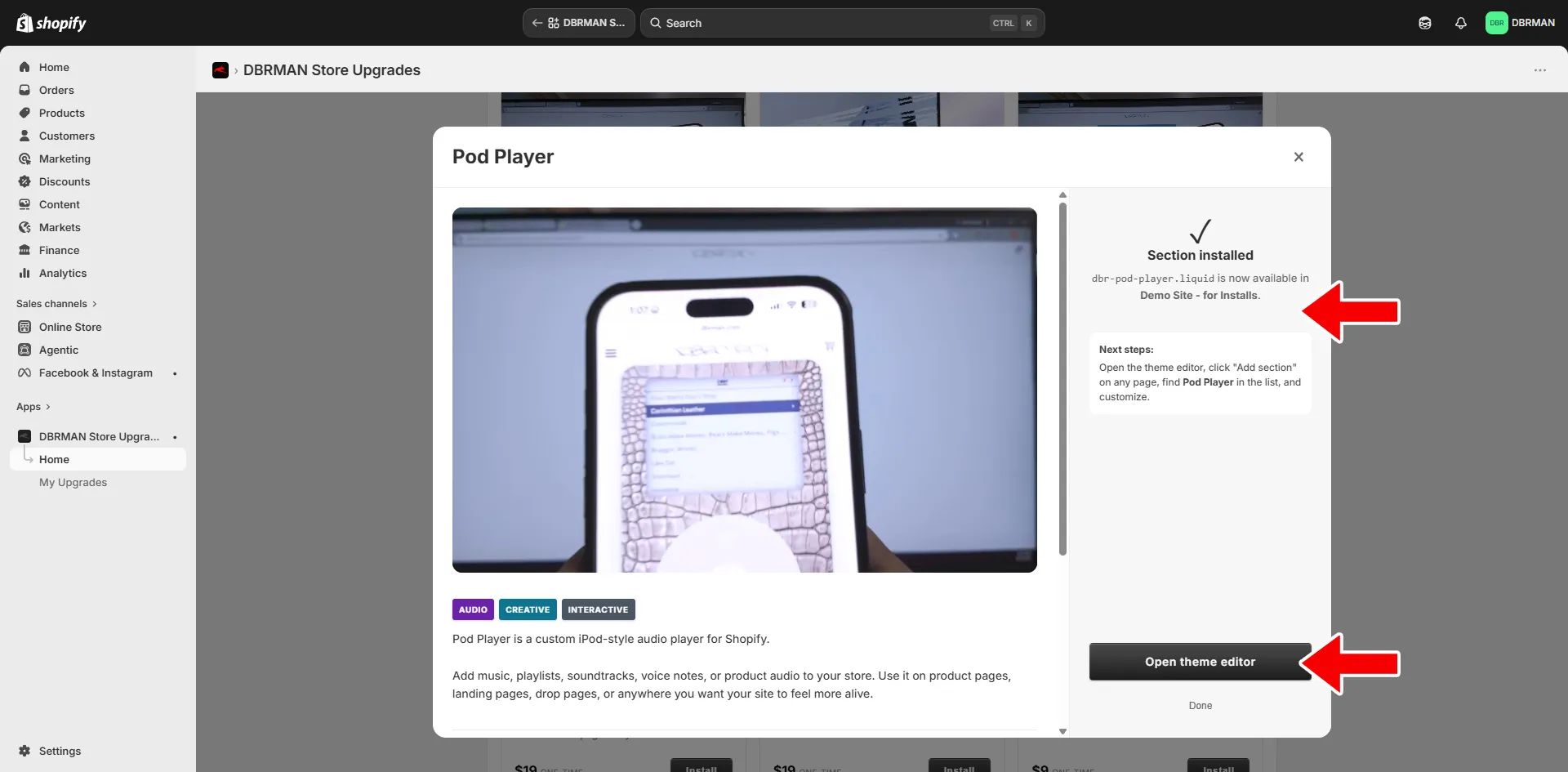
9: CONFIRM THE SECTION INSTALL
• 3-4
After purchase, you will be sent back to the upgrade popup.

You will see a message confirming that the section was installed into your chosen theme.

The Next steps box will explain how to add the section inside the Shopify theme editor.

Click Open theme editor to continue.
PART D
ADD UPGRADEs TO YOUR THEME
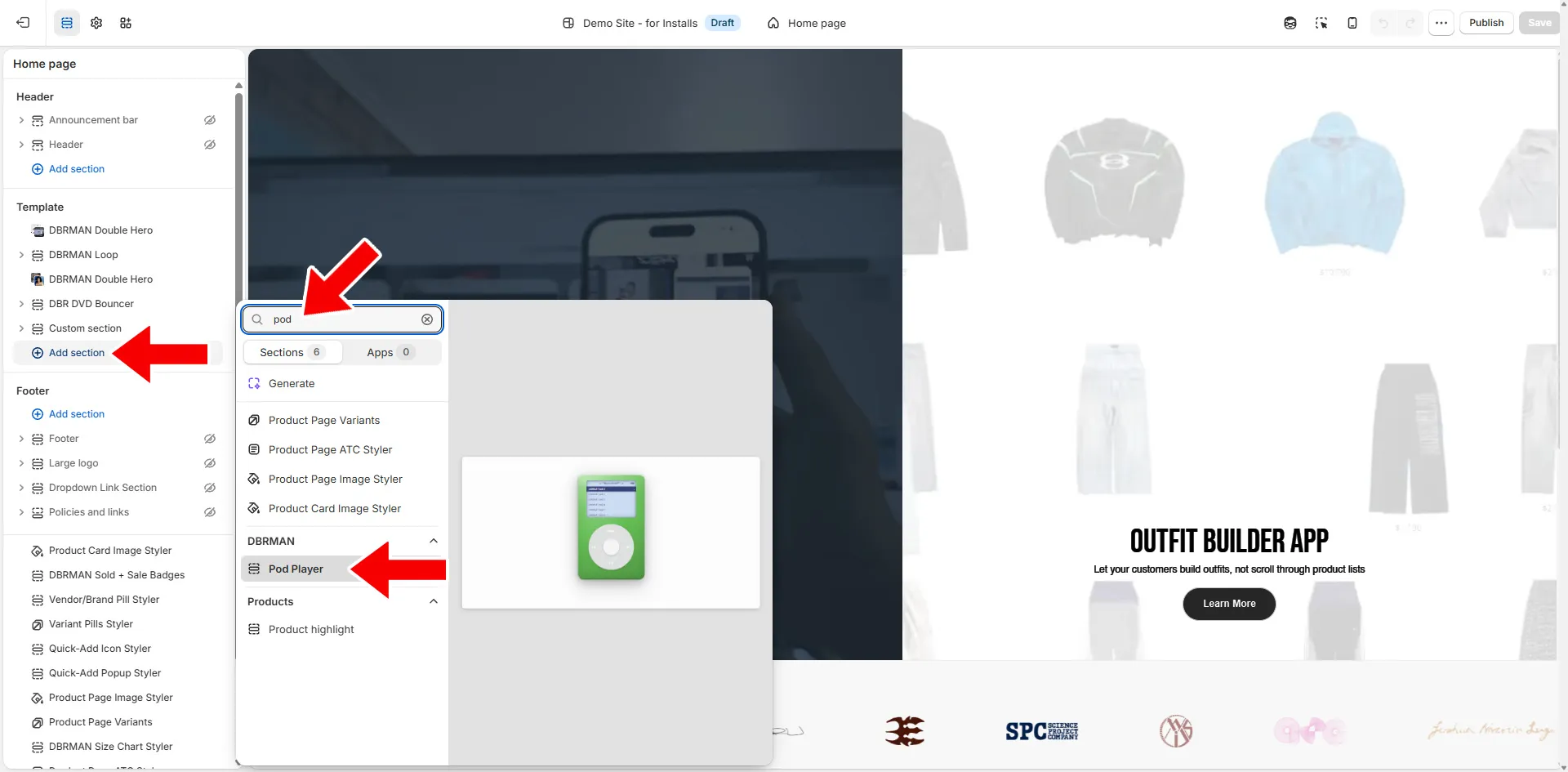
10: ADD THE SECTION IN THE THEME EDITOR
In the Shopify theme editor, go to the page where you want to add the upgrade.

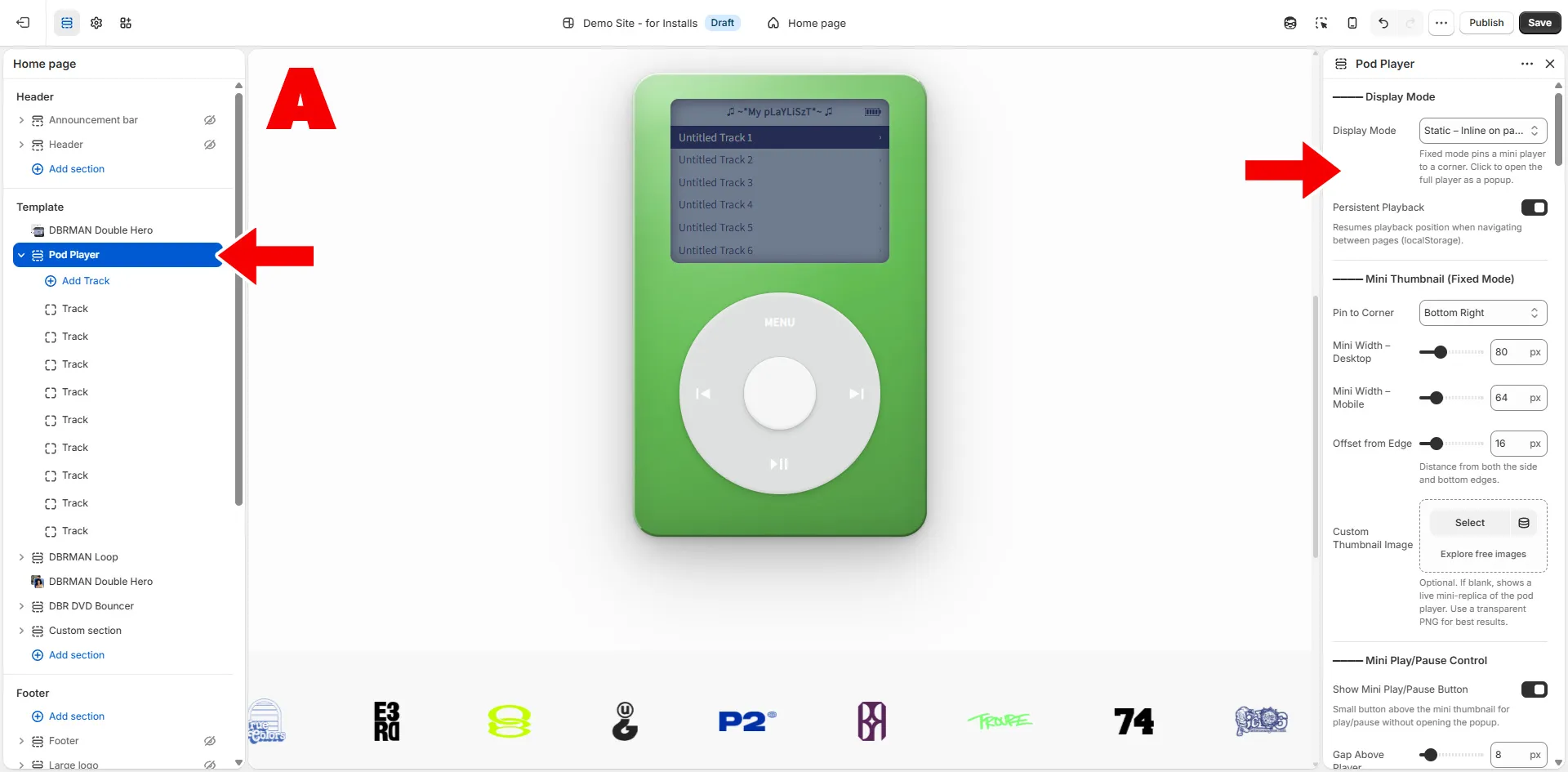
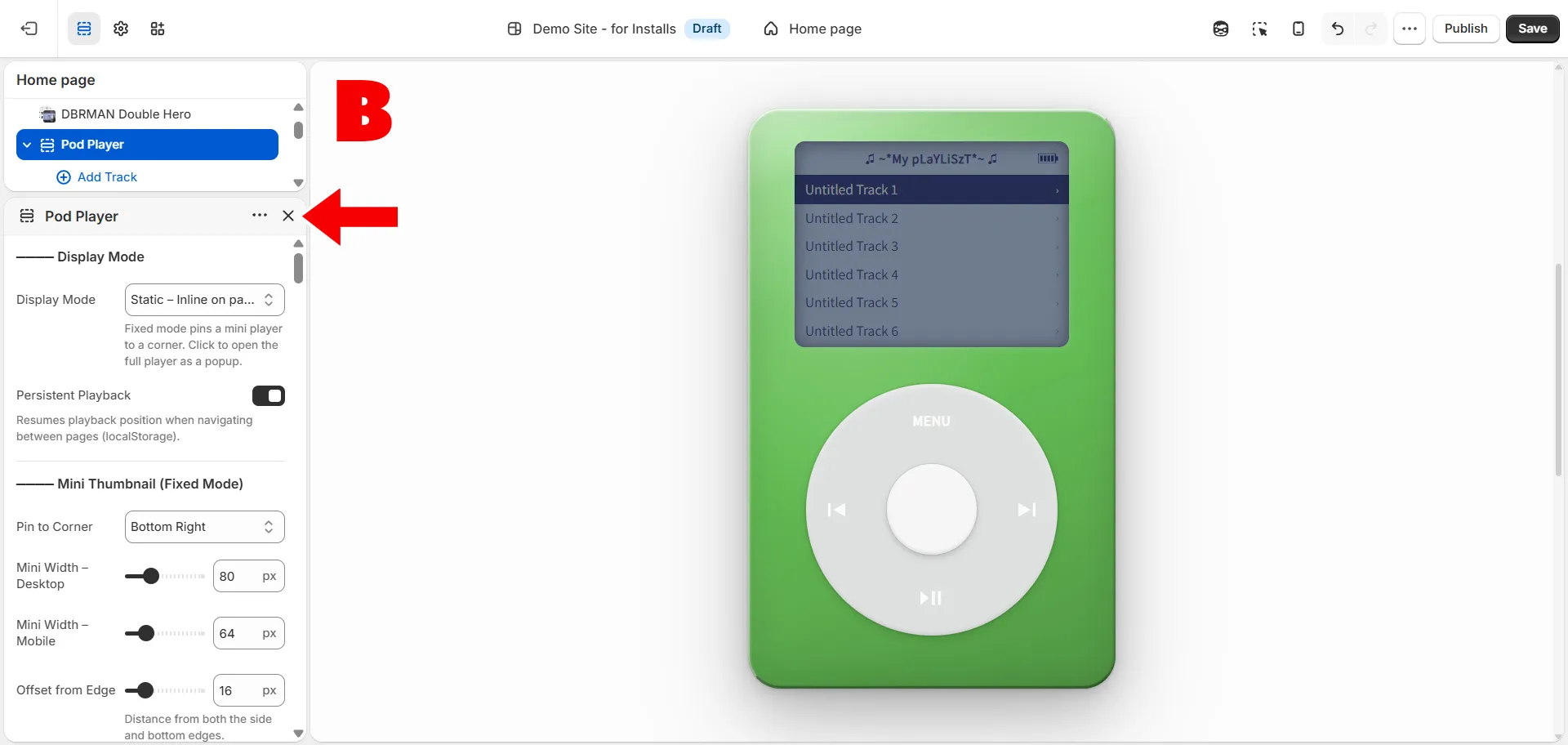
In this example, we are adding Pod Player to the Home page.

Click Add section in the sidebar.

Scroll until you find the DBRMAN category, or use the search bar and type the upgrade name.

For this example, type “pod” to find Pod Player.

Click the upgrade name to add it to the page.
11: CUSTOMIZE AND SAVE
The upgrade will be added to your theme with its default settings.

You can now edit the upgrade settings in the sidebar.

Depending on your screen size, the settings may appear on the right side (A) if viewed in a wide monitor, or inside the left sidebar (B) if viewed on a narrow/laptop monitor.

When you are done, click Save in the top right corner of the theme editor.

If you added the upgrade to your live theme, it will now be live on your store.

If you added it to a draft theme, it will be ready when you publish that theme.
PART E
MANAGE YOUR UPGRADES
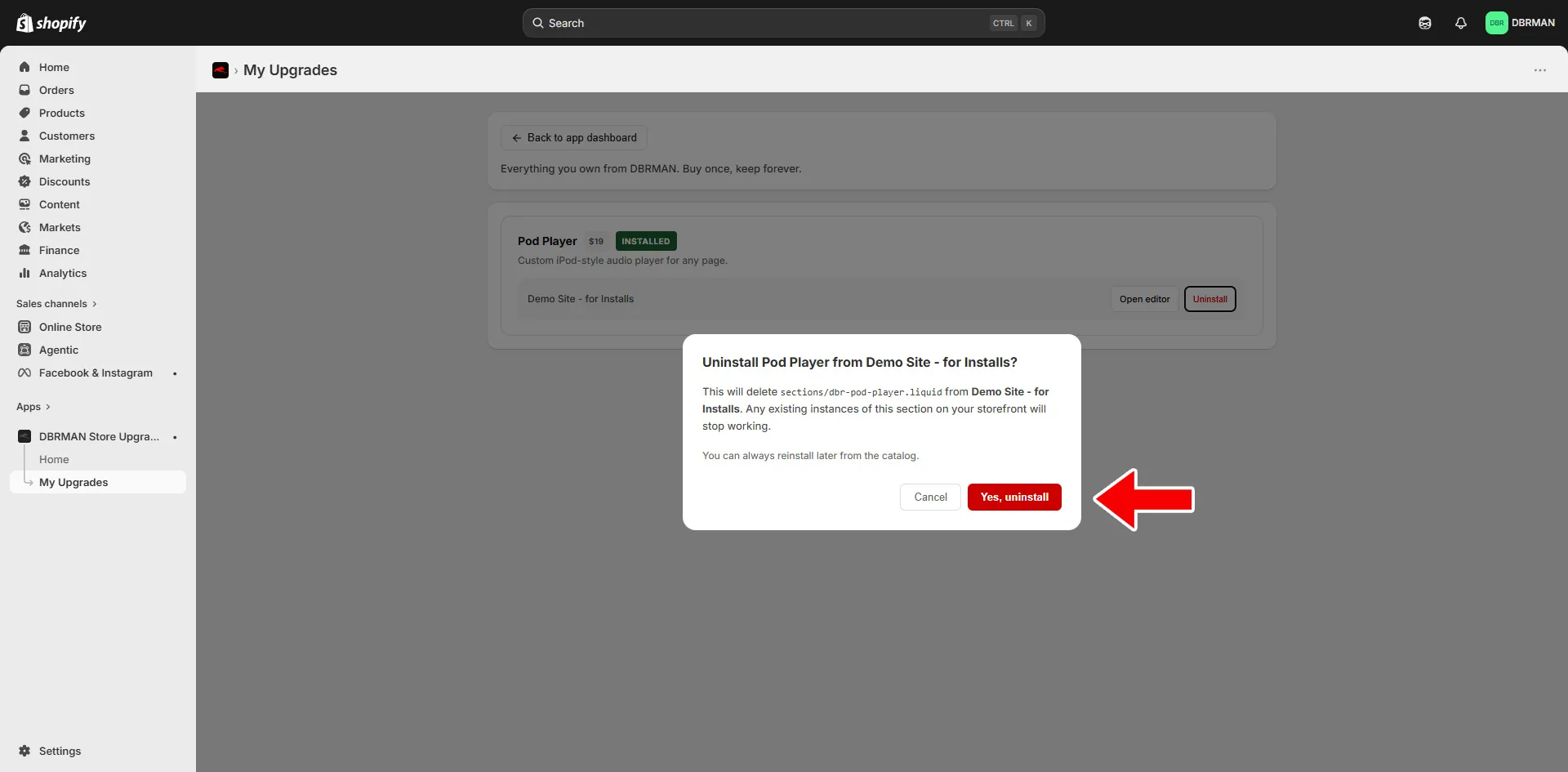
14: UNINSTALL AN UPGRADE
• 3-4
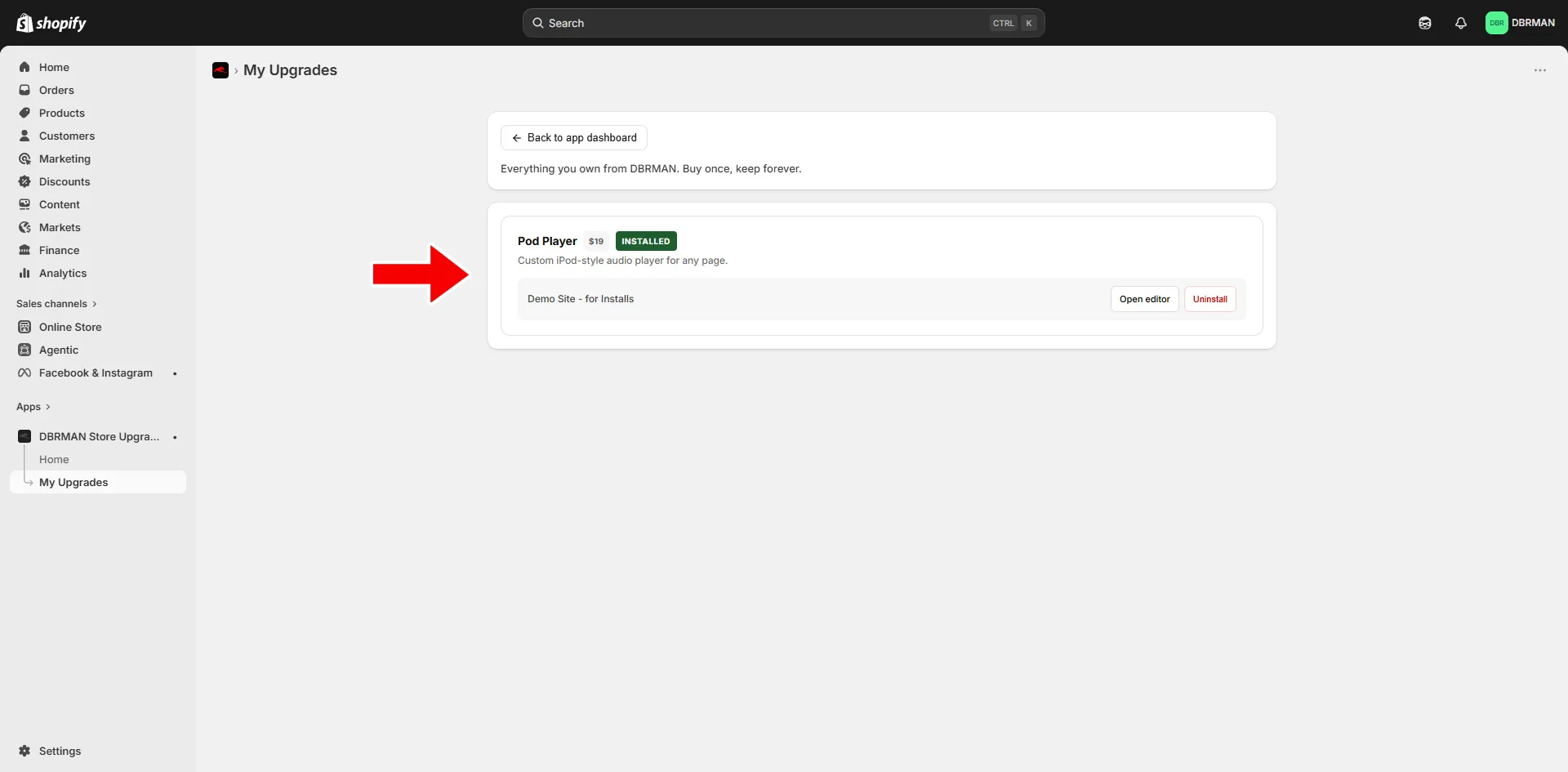
Click Uninstall if you want to remove the upgrade from a specific theme.

This will delete the section file from that theme.

Any pages using that section in that theme will stop showing it.
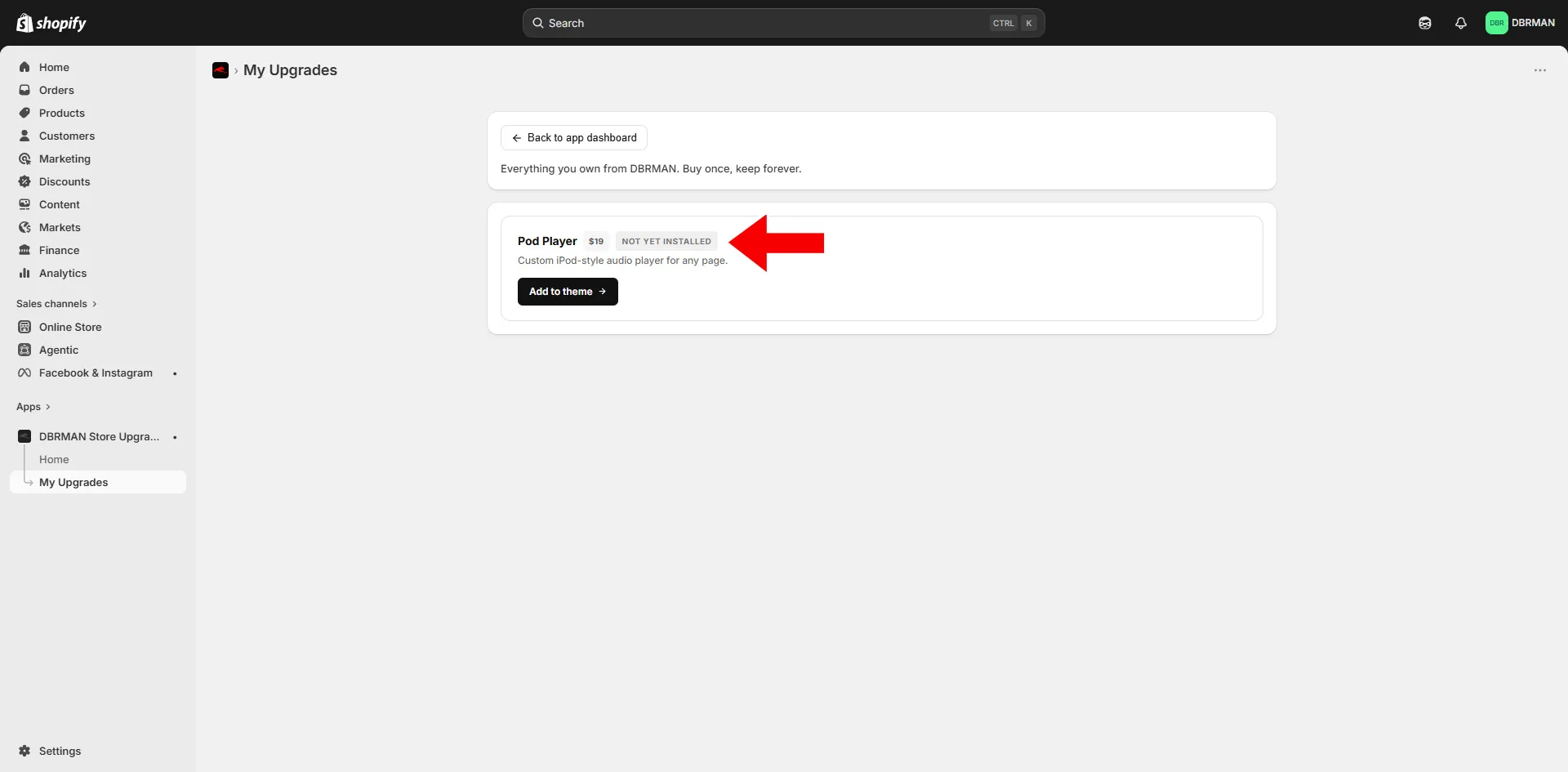
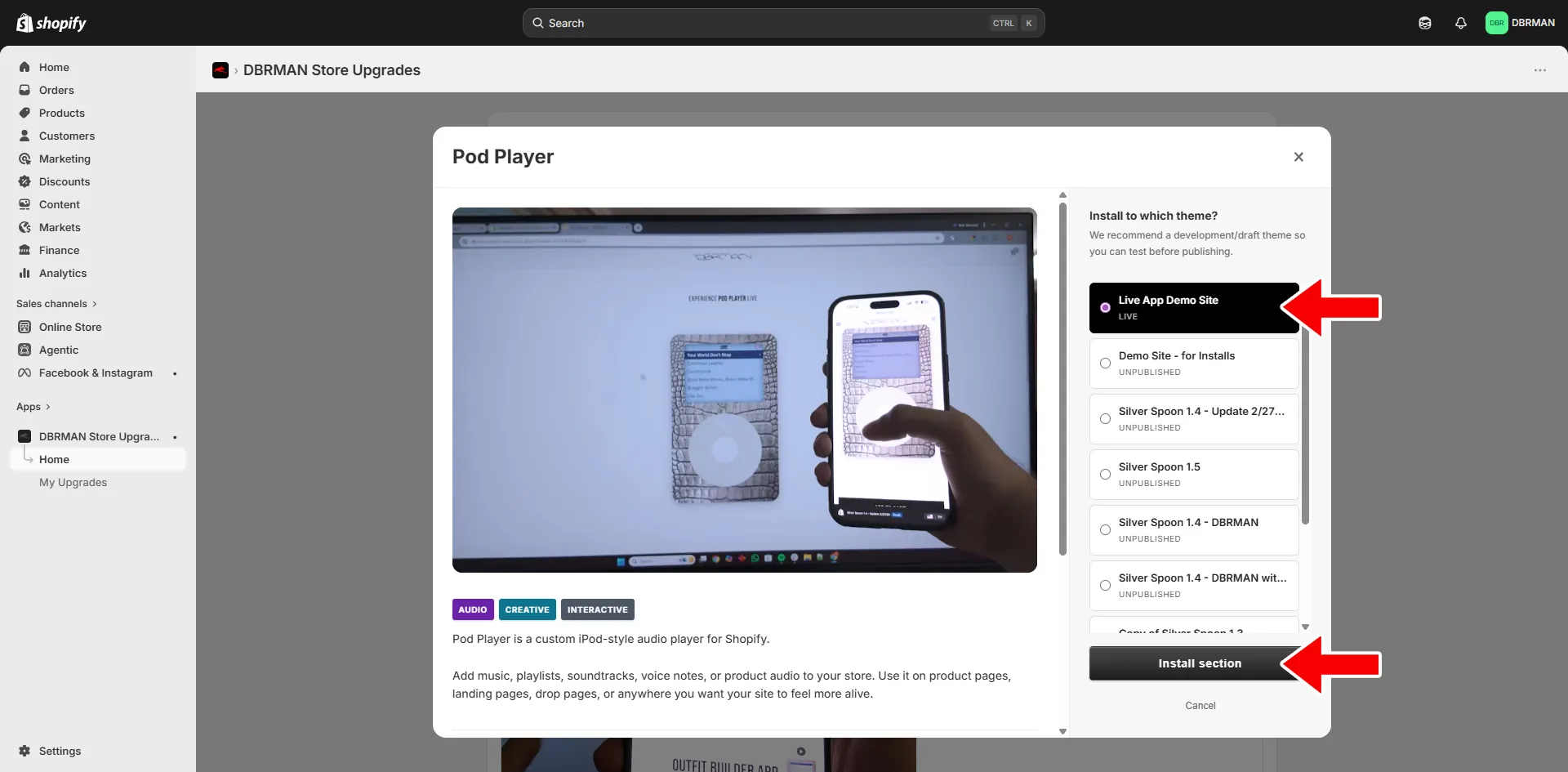
16: INSTALL IT AGAIN
• 3-4
Click Add to theme to install the upgrade again.

The upgrade popup will open and ask you to choose a theme.

Choose the theme where you want to install the upgrade.

Then click Install section.
PART F
TERMS GLOSSARY
ADD TO THEME
Add to theme lets you install an upgrade you already own into another theme.

This is useful if you switch themes, duplicate a theme, or want to test the upgrade somewhere else.
APP
A Shopify app adds extra tools or features to your store.

DBRMAN Store Upgrades is the app you install first. Inside the app, you can browse, buy, and install upgrades.
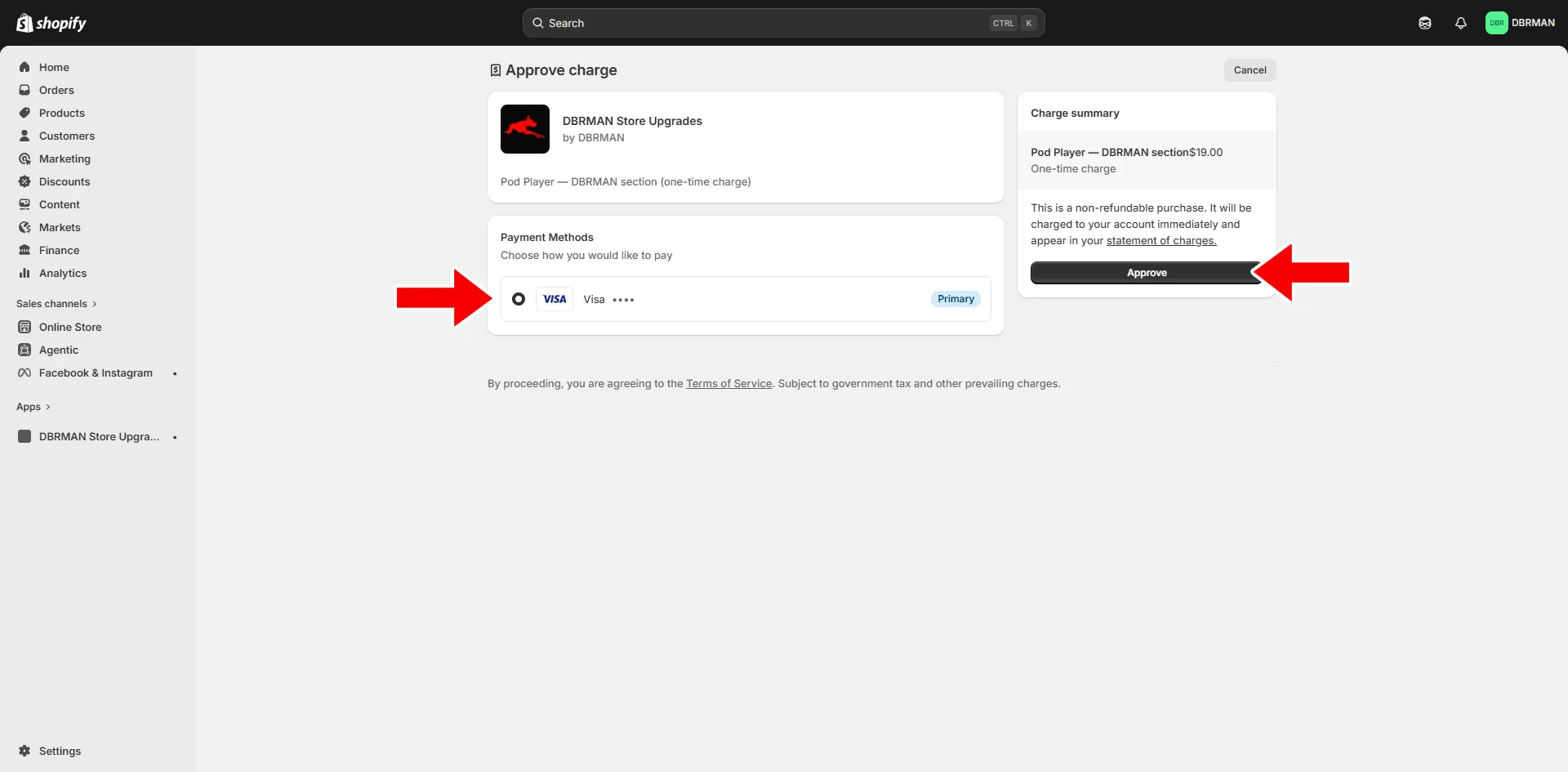
APPROVE CHARGE
Approve charge is the Shopify payment confirmation page.

This is where you approve the one-time purchase before the upgrade is installed.
CATALOG
The catalog is the full list of DBRMAN upgrades inside the app.

You can search the catalog, filter by category, and open any upgrade to learn more.
CUSTOMIZER
The customizer is the settings area inside the theme editor.

This is where you change the options for an upgrade, like text, colors, images, layout, buttons, and other settings.
DRAFT (UNPUBLISHED) THEME
A draft theme is an unpublished version of your store.

You can use a draft theme to test an upgrade before customers see it.
INSTALL
Installing an upgrade adds its section file to your chosen Shopify theme.

After installing it, you still need to add the section to a page in the theme editor.
LIVE (PUBLISHED) THEME
Your live theme is the version of your store that customers can currently see.

If you install an upgrade into your live theme, it can be added to your live store right away.
MY UPGRADES
My Upgrades is where you can see the upgrades you already own.

You can also see which themes your upgrades are installed in.
SECTION
A section is a block you can add to a page in the Shopify theme editor.

For example, Pod Player is installed as a section. Once added, you can move it, customize it, and place it on your store pages.
THEME
A theme controls how your Shopify store looks and works.

Your theme includes your homepage, product pages, collection pages, cart, fonts, colors, layouts, and sections.
THEME EDITOR
The theme editor is where you customize your Shopify store.

This is where you add sections, move sections, edit settings, and save changes.
UNINSTALL
Uninstalling removes the upgrade section file from a specific theme.

You still own the upgrade, but it will no longer be installed in that theme.
UPGRADE
An upgrade is a creative Shopify section made by DBRMAN.

Each upgrade adds a new feature, layout, or interactive experience to your store.